

More Than a Fancy Speaker
A smart display is essentially a voice assistant with a screen attached — but that screen changes what the device can realistically do for you, especially in the kitchen. Unlike a phone propped against a coffee mug or a tablet you're afraid to splatter, a smart display is designed to be touched with one clean finger, glanced at from across the room, and controlled entirely by voice when your hands are full.
The kitchen is where these devices tend to justify their counter space most convincingly. Cooking involves multitasking, time pressure, and constant hand-washing — all situations where a dedicated screen-plus-voice device outperforms reaching for a phone. The tips below focus on getting real, daily utility out of a smart display rather than treating it as an expensive novelty.
Ecosystem compatibility matters
Smart displays vary significantly by ecosystem — some integrate deeply with certain smart home platforms, streaming services, or video calling apps while offering limited support for others. Before assuming a feature described here is available on your device, check the manufacturer's current feature list. Capabilities can also change with software updates, so it's worth reviewing settings periodically.
Seven Ways to Use It Better
Run multiple named timers at once
Voice speakers can only tell you "your timer is done" — they can't show you which one. A smart display fixes this by displaying all active timers by name on screen. Set a pasta timer, a sauce timer, and a bread timer simultaneously, and you can glance at the screen to see exactly what's next without asking a follow-up question. Name each one when you set it: "set a 12-minute pasta timer" rather than just "set a 12-minute timer."
Named timers displayed on screen eliminate the guesswork that trips up voice-only cooking.
Use step-by-step recipe mode hands-free
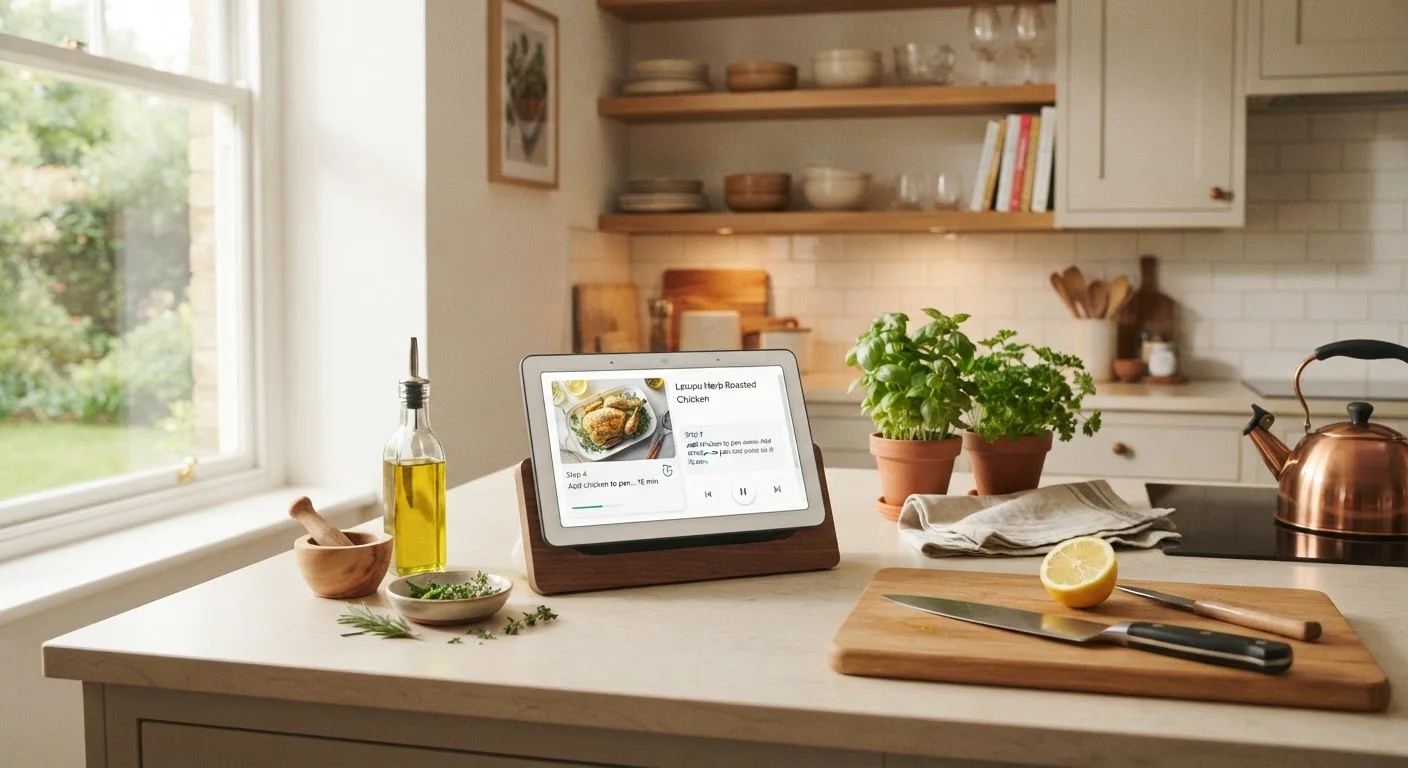
Most smart displays support recipe apps or built-in recipe experiences that display one step at a time in large text, with a simple "next step" voice command to advance. This is meaningfully different from pulling up a web page on your phone — you're not scrolling through ads, losing your place, or wiping down a screen every two minutes. Look for recipe integrations native to your display's ecosystem, and if you prefer a specific cooking app, check whether it offers a display-optimized experience.
Step-by-step recipe mode advances with a single voice command, keeping your hands free throughout.
Make video calls without touching your phone
Calling a family member to walk through a recipe together, or keeping a video call going while you prep dinner, is genuinely useful — and the wide-angle cameras on most smart displays are better suited to kitchen distances than a phone propped on a counter. Built-in calling works across most major video platforms depending on the device's ecosystem. Just be aware of the camera's field of view relative to where you'll be standing, and enable the physical camera cover when the device is idle.
Wide-angle cameras on smart displays are built for room-distance video, not close-up phone selfies.
Control your whole home from one spot
The kitchen is often the busiest room in the house, which makes it a natural control point for smart home devices. A smart display can show you a live camera feed at your front door, dim the lights in the living room, or adjust the thermostat — all without walking to another room or finding your phone. If you've already invested in smart home security hardware, checking those feeds on the kitchen display while cooking is a practical integration rather than a gimmick.
The kitchen is a natural control hub — smart displays centralize home management in the room you use most.
Use it as a grocery and shopping list hub
Saying "add heavy cream to my shopping list" while you notice you're out is faster and less error-prone than unlocking your phone or scribbling on paper. Smart displays sync shopping lists to companion apps on your phone, so the list is ready when you're at the store. Some ecosystems also allow multiple household members to add to the same shared list, which reduces the classic "I thought you were getting that" problem. See how this fits into broader home organization strategies for keeping your household running smoothly.
Voice-added grocery lists sync to your phone automatically, so nothing is forgotten at the store.
Display ambient information at a glance
When the display isn't in active use, it can show useful ambient information: the weather forecast, your calendar for the day, or a digital clock. This replaces the habit of picking up your phone to check the time or weather while cooking — a small change that reduces distraction meaningfully. Most devices let you customize what appears on the idle screen through their companion app. Choose information that's genuinely useful to morning or evening kitchen routines rather than defaulting to whatever the device suggests.
An idle smart display showing your calendar and forecast replaces several unnecessary phone check-ins.
Set up privacy controls before you rely on it daily
Before a smart display becomes a fixture in your kitchen, take ten minutes to configure its privacy settings. Enable the physical camera shutter or cover it when not video calling. Learn the hardware mute button location — it disables the microphone at the hardware level, not just in software. Review which apps have access to the camera and microphone in the device settings. These steps are straightforward and take little time, but they matter more once the device is running continuously. For a broader look at securing smart home devices after setup, see keeping smart home devices secure.
Hardware mute and camera covers are the most reliable privacy controls — use them as defaults.
Start with voice, not touch
When learning a new smart display feature, practice triggering it by voice first — even if tapping the screen seems easier. Building voice habits early pays off when your hands are consistently occupied while cooking. Touch is a useful fallback, not the primary interface.
Making It a Habit, Not a Hassle
The biggest barrier to getting value from a smart display isn't the technology — it's building the habit of reaching for it instead of your phone. Start with one or two features that genuinely irritate you today: perpetually lost timers, recipe-scrolling with wet hands, or forgetting to turn off lights when you leave the kitchen. Once those feel natural, the rest follows.
For households with multiple people, voice profiles help the display respond to each person appropriately. Our article on voice assistants in multi-person households covers how to set up profiles and reduce friction when everyone has different preferences. And if privacy questions are holding you back from fully committing, common myths about smart speaker privacy is worth a read before making any changes to your settings.
The content on this site is for informational purposes only and is not a substitute for professional advice. Always consult a qualified professional for guidance specific to your situation.