

The Gap Between Advertised and Usable Storage
When a phone is marketed as having 128GB of storage, that number reflects the total flash memory installed — not what's available to you. Before you add a single photo or app, the operating system stakes its claim. Android can occupy anywhere from 8GB to 20GB depending on the manufacturer's software layer; iOS tends to be more compact but still consumes several gigabytes. Add in pre-installed apps (some of which can't be uninstalled), system recovery partitions, and firmware, and a brand-new 128GB phone may greet you with 105GB or less of actual free space.
This gap surprises many users, but it's a standard part of how consumer storage is specified. The advertised figure describes raw hardware capacity, not available user space — a distinction phone makers are not always quick to highlight.
~10–20GB
Typical OS and system overhead on a new phone
The operating system, pre-installed apps, and recovery partitions routinely consume this range before any user data is added, based on general industry observations across major platforms.
400MB+
Storage used per minute of 4K video
Video recorded at 4K resolution on modern smartphone cameras can produce files of this size depending on frame rate and format, making it the fastest way to consume storage.
2–5GB
Typical cache size for a heavily used app
Social media, streaming, and browser apps used daily over several months routinely accumulate this volume of temporary cache data without user awareness.
What Cache Files Are — and Why They Pile Up
Every app you use regularly generates cache — temporary files stored locally to make the app feel faster. When Instagram loads your feed, it saves image data so those same images don't have to re-download the next time you scroll past them. When your browser fetches a webpage, it stores assets locally for quicker repeat visits. This is intentional behavior designed to improve your experience.
The problem is that apps rarely clean up aggressively after themselves. Over weeks and months, cache files accumulate. A single social media app or streaming service can quietly grow to 2–5GB of cached data — and many users have a dozen such apps installed. Most phones let you clear cache per app through Settings, and on Android you can often clear it in bulk. iOS handles cache management differently, typically allowing users to offload or reinstall apps rather than clearing cache directly.
Make Cache Clearing a Quarterly Habit
Set a reminder every three months to review your top five most-used apps and clear their cache through your phone's Settings menu. This single habit can reclaim several gigabytes of storage over the course of a year with no risk of losing personal files or data.
Photos, Videos, and the Storage Problem You Don't See Coming
Modern smartphone cameras produce large files. A single photo from a recent flagship can range from 3MB to over 10MB depending on format and resolution; a minute of 4K video can consume 400MB or more. Users who shoot frequently — family events, vacations, everyday moments — can fill gigabytes in a matter of weeks without realizing it.
What compounds this is that many users keep far more media than they intend to. Duplicate shots, accidental recordings, screenshots, and images received through messaging apps all accumulate in the camera roll. Connecting your phone to a cloud backup service and enabling automatic photo upload is one of the most effective ways to reduce on-device storage pressure — though it's worth understanding what those services do and don't back up by default.
Beyond photos, messaging apps deserve attention. Group chats can silently deliver hundreds of images, videos, and voice memos directly to your phone's storage. Most messaging apps have a setting to limit or disable automatic media downloads — a small adjustment that can prevent significant storage creep.
System Updates, App Data, and the Files You Can't Easily See
Your phone's storage contains several categories of data that don't show up in obvious places. System updates download before they install, temporarily doubling their footprint during the update process. App data — distinct from cache — includes your saved preferences, offline content, downloaded podcast episodes, and game save files. Some navigation apps, for example, store entire regional maps locally for offline use, which can account for several gigabytes on their own.
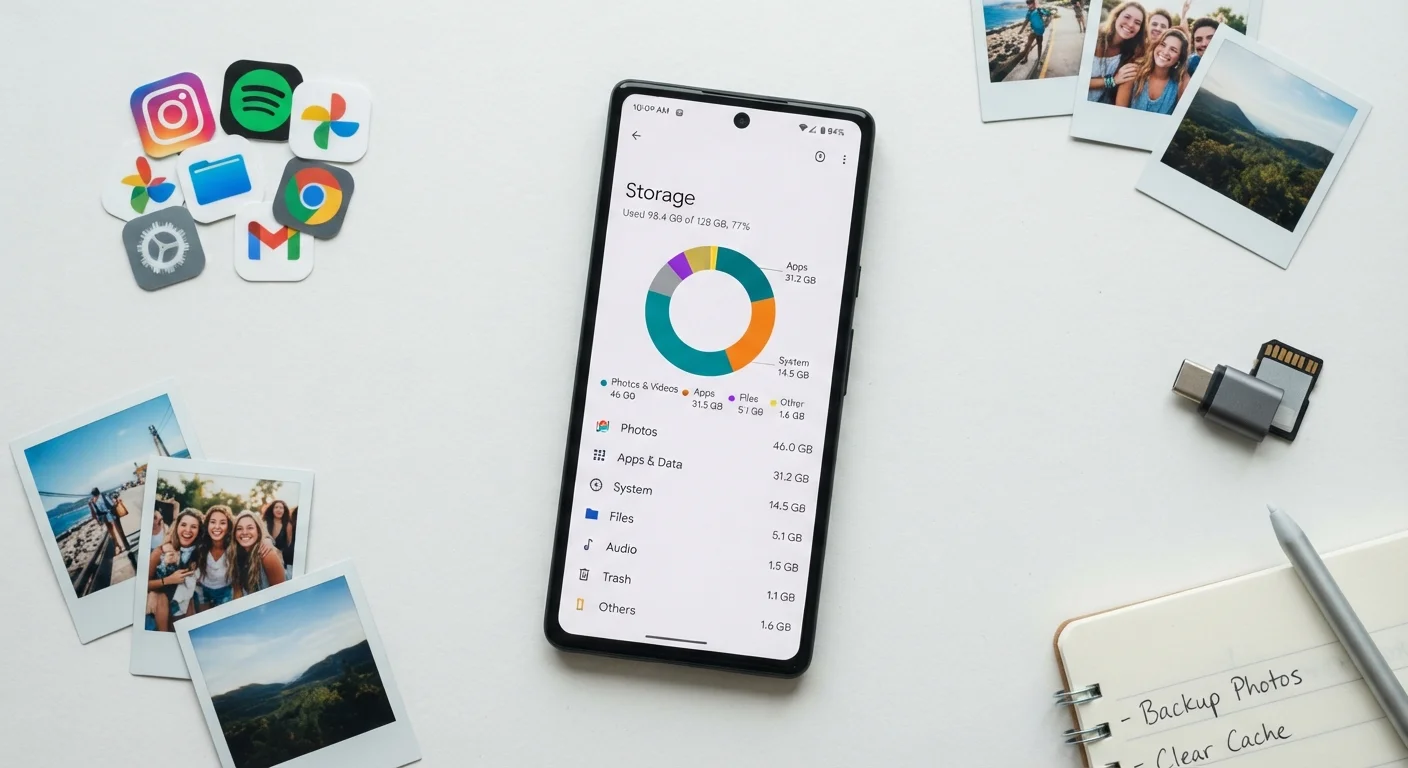
If your phone feels full but you can't identify the culprit, dig into your storage breakdown in Settings. Both Android and iOS provide a visual breakdown by category (Apps, Photos, System, Other/Miscellaneous). The "Other" or "Miscellaneous" category is often the source of confusion — it can include system logs, mail attachments, Siri or Google Assistant voice data, and files from apps that don't report their usage cleanly.
For a broader look at how your phone's software affects your day-to-day experience, it's worth reviewing common smartphone misconceptions — including beliefs about app management that may actually be making things worse, not better.
"Other" Storage Can Be Hard to Diagnose
Both iOS and Android categorize some storage as "Other" or "System Data" — a catch-all for files the OS doesn't assign to a specific app. This can include mail attachments, voice assistant data, and system logs. If this category is unusually large, a full phone restart or, in more extreme cases, a factory reset (after backing up your data) can sometimes clear it. Check your phone's support documentation for guidance specific to your model and operating system version.
Practical Ways to Reclaim Space
Recovering storage doesn't require technical expertise. A few consistent habits make a significant difference:
- Review your largest apps regularly. Sort apps by size in your phone's storage settings and uninstall anything you haven't used in months.
- Clear app cache selectively. Focus on apps you use heavily — browsers, social media, streaming services — as these accumulate the most cache over time.
- Enable cloud photo backup, then delete local copies. Once your photos are safely backed up, removing them from the device itself frees the most storage for most users.
- Audit downloaded media. Streaming apps like Spotify or Netflix may hold gigabytes of locally downloaded content. Delete downloads you've already watched or listened to.
- Check messaging app settings. Turn off auto-download for media in apps you use frequently to stop files from arriving automatically.
If you're also thinking about how your apps interact with your personal data more broadly, reviewing your phone's privacy settings is a natural companion step — storage and data permissions often overlap in ways that affect both performance and security.
Frequently Asked Questions
The operating system itself — iOS or Android — occupies several gigabytes, and manufacturers often pre-install apps that cannot be removed. On a 128GB phone, you may realistically have 100–110GB of usable space from the start.
Cache is temporary data an app saves locally to load faster next time — things like images, search history, or session data. Clearing it is generally safe and frees space, though some apps will reload more slowly the next time you open them.
Most modern iPhones and many Android flagships do not support expandable storage via microSD card. Some Android devices still include a microSD slot — check your specific model's specs. Cloud storage is the most universal way to extend available space.
Yes. When internal storage is nearly full, the operating system struggles to write the temporary files it needs to function smoothly. Keeping at least 10–15% of storage free is a reasonable general practice to maintain performance.
For most users, photos and videos dominate storage, followed by streaming apps (which may cache downloaded content), games, and messaging apps that accumulate media from conversations over time.
Usually yes — uninstalling an app removes both the app itself and most associated data. However, some apps store files in shared folders (like the downloads folder) that persist after uninstallation and may need to be manually deleted.
The content on this site is for informational purposes only and is not a substitute for professional advice. Always consult a qualified professional for guidance specific to your situation.