

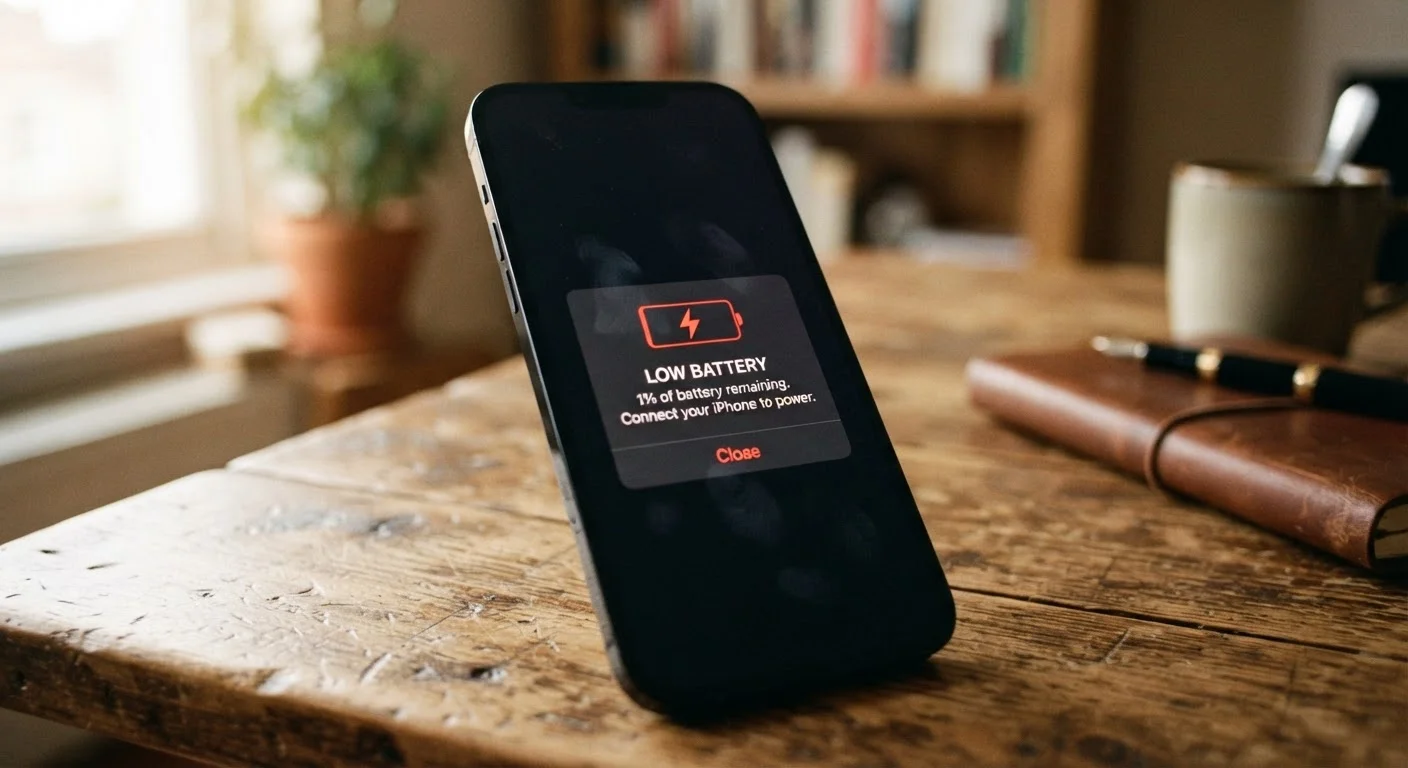
Why Your Battery Dies Before Lunch
You plugged in overnight, started your morning at 100%, and somehow you're hunting for a charger by 11 a.m. It's a frustration shared by millions of smartphone users — and the cause usually isn't a failing battery. It's a collection of small, invisible habits that quietly siphon power all morning long.
Most of these drains happen in the background, out of sight. Your phone is doing far more than you realize even when the screen is dark. Understanding which behaviors are responsible — and why they persist — is the first step to reclaiming a full day's charge. For context on how battery health degrades at a deeper level, see why your phone battery degrades over time.
Leaving background app refresh enabled for every installed app.
Why it happens: Background app refresh is turned on by default for most apps, and many users never revisit the setting after setup. It's invisible — there's no obvious signal that it's happening.
Running screen brightness at or near maximum all the time.
Why it happens: Users often crank brightness up in one bright environment — outdoors, for instance — and forget to dial it back down. High brightness feels like it improves the phone experience, so there's no natural trigger to reduce it.
Keeping location services set to "Always On" for apps that don't need it.
Why it happens: Apps frequently request "always on" location access during setup, and users often grant it without considering the long-term impact. The permission persists quietly in the background long after installation.
Receiving push notifications from dozens of low-priority apps.
Why it happens: Apps prompt for notification access immediately after install, and users tend to tap "Allow" reflexively. Over time, dozens of apps are sending alerts throughout the day, each one waking the phone's processor and radio.
Keeping Wi-Fi, Bluetooth, and cellular data all active when only one is needed.
Why it happens: These radios are on by default and most users leave them that way. The assumption is that radios only use power when actively transferring data — but scanning for networks and maintaining connections draws power continuously.
Not using your phone's built-in battery optimization or low-power mode proactively.
Why it happens: Low Power Mode is often treated as an emergency measure to be switched on at 20%, not a routine tool. Users don't realize it can be enabled at any charge level to reduce background activity.
Settings That Make the Biggest Difference
Once you've identified your worst habits, the fixes are largely straightforward — and they live inside your phone's existing settings. You don't need a third-party app to reclaim battery life; most phones now include a dedicated battery section that shows per-app usage and offers one-tap optimizations.
~30%
Battery used by display on average
The display is consistently cited by smartphone manufacturers as one of the top three battery consumers on modern devices.
Up to 20%
Battery saved by reducing background activity
Research from mobile OS developers suggests limiting background app refresh and location access can extend runtime by a meaningful margin for heavy users.
80+
Average apps installed per smartphone
According to industry data, the average US smartphone user has over 80 apps installed — many running background processes the user never configured.
Start with screen brightness: enable auto-brightness so your display dims automatically in low-light environments rather than blazing at full power indoors. Then open your location settings and switch any app that doesn't need real-time positioning from "Always" to "While Using" or "Never." For apps you use infrequently, disabling location entirely is reasonable.
Review background app refresh next — on most phones, this is a per-app toggle, so you can leave it on for a weather app that genuinely needs updated data while shutting it off for a game or shopping app. Finally, audit your push notification list. Turning off notifications for low-priority apps reduces the number of times your phone's processor and wireless radio wake up throughout the day.
Your phone likely ships with built-in tools that go beyond basic settings. Lesser-known smartphone features like scheduled focus modes and adaptive battery learning can automate much of this work once configured. And if you find yourself checking your phone constantly partly out of habit, managing screen time intentionally has the added benefit of reducing active screen-on time — one of the most direct ways to extend your daily charge.
Battery Saver Apps Can Sometimes Backfire
Third-party battery optimization apps promise dramatic improvements but often introduce their own background processes that consume the very resources they claim to save. On modern iOS and Android devices, the operating system already includes sophisticated battery management. Relying on your phone's native tools is generally more effective and carries less risk of app conflicts or privacy exposure.
The content on this site is for informational purposes only and is not a substitute for professional advice. Always consult a qualified professional for guidance specific to your situation.