

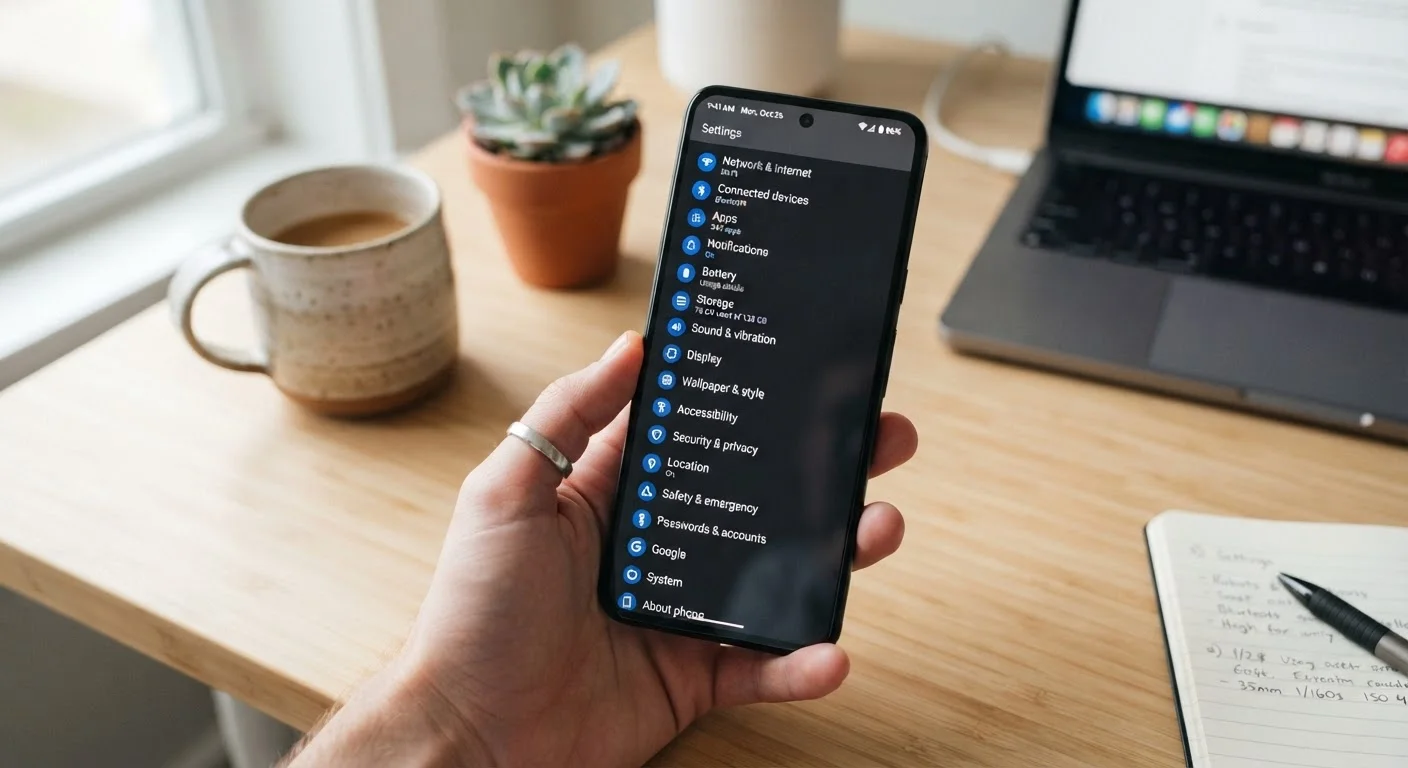
The Features Already on Your Phone
Smartphones arrive packed with capabilities that never make it into the setup wizard or the ads. Most people use a fraction of what their device can actually do — not because the features are complicated, but because no one pointed them out. If you've ever felt like your phone works against you rather than for you, the fix might already be installed.
The features below are available on most modern iOS and Android devices, though exact names and menu locations vary by manufacturer and operating system version. Consider this a starting point for exploration rather than a step-by-step guide tied to one specific device. And if you want to see how basic habits affect daily performance, phone habits that quietly drain your battery offers a useful companion read.
Focus Modes
Both iOS and Android offer customizable focus or do-not-disturb modes that go far beyond silencing calls. You can configure which contacts and apps can break through during specific periods — work hours, sleep time, or a dedicated reading window — and even set different home screen layouts for each mode. This means your phone's interface can literally change depending on what you're doing.
Unlike blanket silence, Focus modes let you stay reachable to the people who matter while filtering out everything else. Many users find this more sustainable than managing screen time with restrictive tools.
Focus modes let your phone's entire layout shift to match what you're actually doing.
Live Text and Visual Lookup
Point your camera at printed text — a restaurant menu, a business card, a handwritten note — and your phone can recognize, copy, translate, or search that text without any third-party app. On iOS this feature is called Live Text; Android offers similar capability through Google Lens, which is often built into the default camera app.
Visual Lookup extends this further: photograph a plant, a dog breed, or a landmark and get contextual information instantly. These tools are genuinely useful for travelers, researchers, and anyone who regularly encounters printed information they want to act on quickly.
Your camera can read, copy, and translate printed text — no scanning app required.
Back Tap (iOS) and Custom Gestures (Android)
On supported iPhones, tapping the back of the device two or three times can trigger a specific action — taking a screenshot, opening the camera, running a Shortcut, or activating accessibility tools. This is found under Settings > Accessibility > Touch > Back Tap and works even with a case on most devices.
Android manufacturers offer varying equivalents: some devices support edge squeeze gestures, double-press power button shortcuts, or customizable fingerprint sensor taps. These shortcuts reduce the number of steps between intention and action, which adds up over the course of a day.
A double-tap on the back of your phone can trigger any action you assign to it.
Scheduled Summary for Notifications
Instead of letting every notification arrive the moment it's sent, notification summaries batch non-urgent alerts and deliver them at set times — say, morning and evening. iOS introduced this as Notification Summary; Android's adaptive notification features offer similar batching behavior on many devices.
The practical effect is fewer interruptions during the day without missing anything important. It pairs well with a thoughtful app organization strategy so that your home screen reflects your priorities rather than your most persistent notifications.
Batching notifications into summaries cuts interruptions without creating information gaps.
Built-In App Permission Auditing
Both iOS and Android include a privacy dashboard or permission manager that shows which apps have accessed your location, microphone, camera, or contacts — and when. This isn't a third-party tool; it's built into the operating system settings. Reviewing it occasionally reveals permissions that were granted during setup and forgotten.
Revoking unnecessary permissions takes seconds and has no effect on most apps' core functionality. Understanding what each permission actually grants is straightforward once you know where to look — a plain-English breakdown of app permissions covers the most common ones in detail.
Your phone already tracks which apps accessed your camera or location — and when.
Offline Maps and Navigation
Most mapping apps allow you to download regional maps for offline use — useful for travel, areas with spotty coverage, or simply reducing mobile data consumption. Downloaded maps typically include turn-by-turn navigation, search, and points of interest without requiring a live connection.
This feature is available in Google Maps, Apple Maps, and several other navigation apps. The downloaded files require storage space, so it's worth being selective about which regions you save — but for frequent travelers or rural commuters, it's a practical capability worth setting up in advance.
Downloaded maps let you navigate reliably even when your signal disappears entirely.
Text Replacement and Custom Shortcuts
Both major platforms let you create text shortcuts that auto-expand into longer phrases. Type a short abbreviation and your phone replaces it with your full mailing address, a standard email sign-off, or a frequently used sentence. This feature predates modern AI keyboards but remains one of the most time-saving tools available to heavy texters and emailers.
On iOS it's found under Settings > General > Keyboard > Text Replacement. Android devices offer similar functionality through the keyboard settings. Power users often build dozens of shortcuts for templates they use regularly across messaging, email, and notes apps.
Text shortcuts can expand a few keystrokes into your full address or standard reply.
Making These Features Work for You
None of these tools require technical expertise — they're designed for everyday users and built into the operating system. The challenge is simply knowing they exist. Start with one or two that match a real friction point in your daily routine rather than switching everything on at once.
Explore Settings Gradually
Trying to activate every feature at once can feel overwhelming and lead to turning them all back off. Pick one feature that addresses a real frustration — constant interruptions, repetitive typing, or unclear app permissions — and use it for a week before adding another. Small, deliberate changes tend to stick longer than wholesale overhauls.
If privacy is part of your motivation for exploring your phone's settings more deeply, it's worth understanding what happens beneath the surface too. personal information shared without realizing it covers how everyday digital habits reveal more than most people expect. Similarly, app permissions explained in plain English breaks down exactly what access each permission grants. Getting more from your phone and using it more safely aren't competing goals — they go hand in hand.
The content on this site is for informational purposes only and is not a substitute for professional advice. Always consult a qualified professional for guidance specific to your situation.