

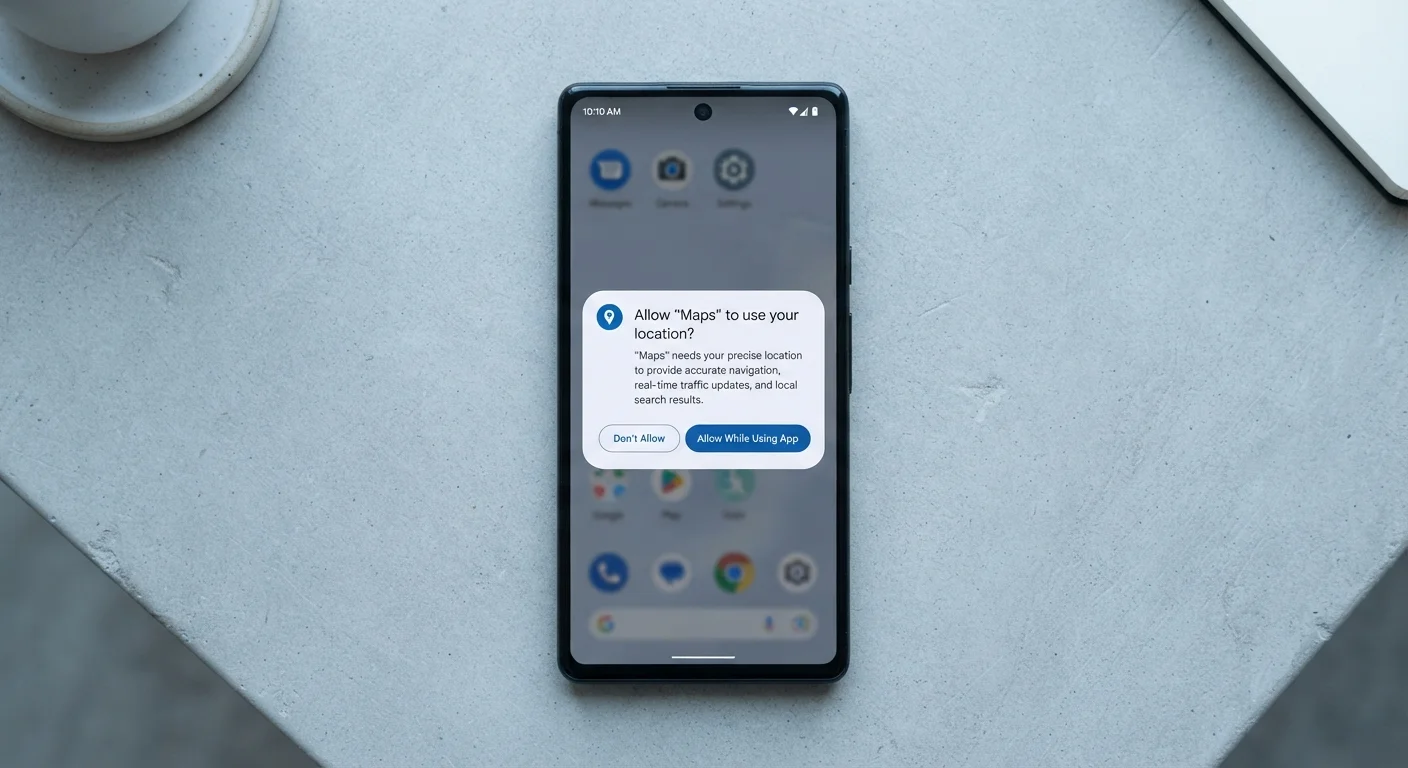
Why App Permissions Matter More Than You Think
Every time you install an app and tap 'Allow,' you're making a privacy decision — often without realizing it. App permissions are the controls that determine what parts of your phone an app can access: your location, camera, contacts, microphone, and more. Granting the wrong ones doesn't just affect convenience; it can expose personal data you'd never intentionally share.
The good news is that modern smartphones give you real control. Both Android and iOS now surface permissions clearly and let you adjust them at any time. The challenge is knowing what each permission actually unlocks — so you can make an informed choice rather than reflexively tapping 'Allow' to get past the prompt.
If you're already concerned your defaults may be too open, your phone's privacy settings may be worth a closer look. Start here with the fundamentals.
Common Permissions Decoded
Location
This is one of the most sensitive permissions. Precise location uses GPS to pinpoint you within meters; approximate location places you within a few city blocks. Many apps legitimately need location — maps, weather, ride-sharing — but requests for background location (access even when the app is closed) deserve extra scrutiny. Grant 'While Using the App' when in doubt.
Camera
Grants the app the ability to activate your device's camera and capture photos or video. This is essential for camera apps, video calling, and QR code scanners. It does not automatically give the app access to your existing photo library — that's controlled separately by the Photos/Media permission.
Microphone
Allows the app to record audio in real time. Required for voice and video calls, speech-to-text, and podcast or music recording apps. An app with microphone access could, in principle, capture audio whenever it's active — which is why it's worth limiting this to apps where audio is a core feature.
Contacts
Provides read access to your full address book — names, numbers, emails, and notes. Messaging and phone apps genuinely need this. Be more cautious with social or productivity apps that request contacts, as this data is often used to map social graphs or target advertising. This is also covered in our look at what personal information you share without realizing it.
Photos / Media / Files
On iOS, apps can request access to your full photo library or only selected photos. On Android, this permission covers broader media storage. Allow full access only to apps that genuinely manage or edit your photos; for apps that just need to upload an image occasionally, use the 'Select Photos' option where available.
Notifications
Lets the app send you alerts, banners, and badge counts. While not a data-access permission in the traditional sense, excessive notifications can be used to drive engagement in ways that aren't in your interest. Both platforms let you customize notification styles per app.
Bluetooth
Required for connecting to wireless accessories — headphones, speakers, fitness trackers. Some apps also use Bluetooth signals for proximity-based tracking (e.g., retail analytics), so this permission is worth reviewing for apps where Bluetooth isn't an obvious feature.
Android and iOS Handle Permissions Differently
iOS tends to offer more granular per-session controls (such as 'Allow Once'), while Android's permission model varies more by device manufacturer and OS version. Both platforms let you review and revoke permissions in Settings at any time. For a deeper look at how the two ecosystems compare on privacy, see how Android and iOS differ.
Health & Fitness / Motion
Grants access to step counts, workout data, heart rate, and other sensor-derived health metrics. On iOS this flows through HealthKit; on Android through Google Health Connect. Only grant this to apps where health tracking is the primary purpose.
How to Review and Manage Permissions Right Now
You don't need to audit every app from scratch. Both platforms offer a permission-first view — meaning you can see all apps that have access to your camera, rather than checking app by app.
- On iPhone: Go to Settings → Privacy & Security. Each category (Location Services, Camera, Microphone, etc.) lists every app with access and what level they've been granted.
- On Android: Go to Settings → Privacy → Permission Manager (path may vary slightly by manufacturer). Same concept — browse by permission type.
A practical rule: if an app hasn't been used in months, revoke its permissions or uninstall it entirely. Android 11 and later does some of this automatically. For a broader look at what separates free and paid app versions — including how data practices often differ — see what you're usually gaining and giving up with free apps.
The principle is straightforward: grant access that matches a clear function the app provides you, and nothing more. When an app requests a permission that has no obvious connection to its purpose, that's a signal worth heeding.
This article provides general information about smartphone features and is not a substitute for professional security or privacy advice tailored to your specific situation.
The content on this site is for informational purposes only and is not a substitute for professional advice. Always consult a qualified professional for guidance specific to your situation.