

Why Phone Organization Matters More Than You Think
The average person unlocks their phone dozens of times a day. If every session starts with a few seconds of hunting for the right app, that friction accumulates — and it quietly shapes how you feel about using your phone at all. A chaotic home screen isn't just annoying; it nudges you toward opening whatever is easiest to find rather than what you actually intended to use.
Organizing your apps isn't about aesthetics. It's about reducing the small decisions and delays that add up across a day. The same thinking that makes zone-based home organization so effective applies directly to your phone: when things live where you expect them, you spend less mental energy locating them and more energy actually using them.
Before starting, take a few minutes with what you have. Scroll through every screen and your app drawer or library. Notice which apps you open daily, which you've never touched, and which sit on your home screen purely out of habit.
What you will need
How to Set Up a Layout That Actually Works
There's no single correct organization system — but there are patterns that consistently work better than others. The steps below walk you through building a layout from the ground up, whether you're on iOS or Android. If you want to understand how these two platforms differ in their customization options, this overview of Android and iOS differences is a useful reference before you start.
Delete or offload apps you don't use
Go to your app library (Android) or App Library (iOS) and scroll through everything installed. Remove any app you haven't opened in the past month and don't anticipate needing. On iOS, you can offload an app — removing the app file but keeping its data — if you want a safety net. On Android, you can simply uninstall. Fewer apps means fewer decisions and a simpler layout to maintain.
Identify your daily-use apps
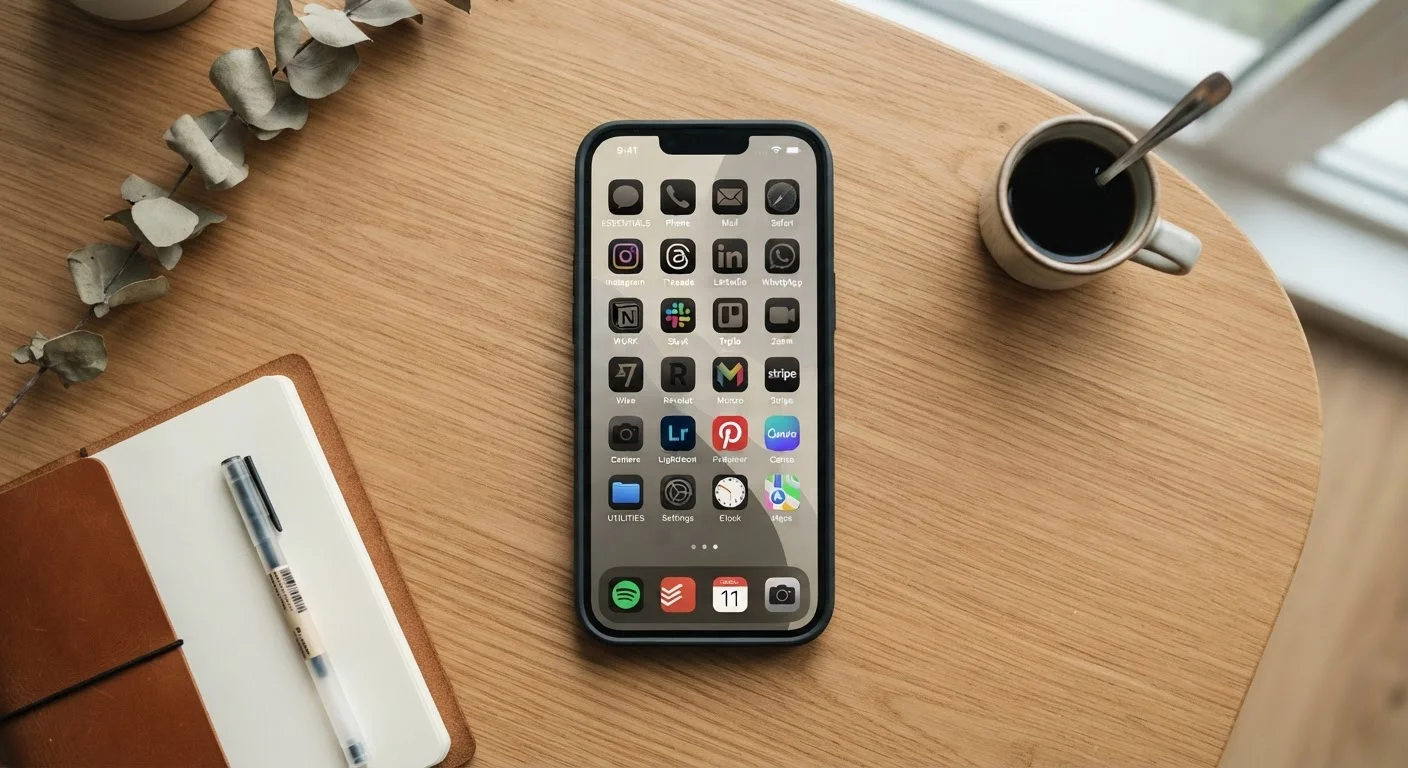
Think about which apps you open every single day without exception — your messaging app, calendar, maps, camera, and any others that are genuinely part of your routine. These are your priority apps and they should be the easiest to reach: either on your main home screen or in your dock at the bottom of the screen. Aim for no more than six to eight apps in this tier.
Group remaining apps into activity-based folders
Rather than grouping apps by category (all "social" apps together, all "utilities" together), group them by when and why you use them. Examples: a Morning folder with your news, weather, and coffee-order app; a Money folder with your banking and budgeting tools; a Travel folder with maps, ride apps, and airline apps. Activity-based grouping means you reach for a folder at the moment you need it, not after remembering which category an app belongs to.
Use your app library or drawer for everything else
On iOS, any app not on a home screen page is still accessible via the App Library — swipe left past your last home screen to reach it. On Android, the app drawer holds all installed apps regardless of whether they appear on a home screen. Use these as your storage for apps you need occasionally but don't want taking up visible space. You can also use your phone's search function (swipe down on iOS, or use the search bar on Android) to open any app instantly by name.
Arrange your home screen pages intentionally
If you use more than one home screen page, give each page a purpose. A common approach: Page 1 holds your dock and a minimal set of daily apps; Page 2 holds your main folders; any additional pages are for widgets or less-used shortcuts. On iOS, you can hide entire home screen pages you don't need — press and hold the home screen, tap the page dots at the bottom, and deselect pages to hide them without deleting anything.
Use Widgets to Surface Information, Not Apps
Widgets let you see information — upcoming calendar events, weather, a to-do list — without opening an app at all. Placing one or two relevant widgets on your main home screen can reduce how often you need to open apps for quick checks. Avoid stacking too many widgets; they can make a screen feel as cluttered as too many app icons.
Once your layout is set, it's worth exploring what else your phone can do to support your daily routine. Many built-in features — like focus modes and notification filters — work better once your apps are logically grouped. See lesser-known smartphone features worth using for ideas that complement a cleaner setup.
Keeping It Manageable Over Time
Organization is easy to set up and easy to let drift. New apps get installed and dropped on the last screen. Folders expand until they stop making sense. A simple rule helps: whenever you install a new app, decide immediately where it belongs — or whether it belongs at all.
Every few months, do a short audit. Remove apps you haven't opened in 60 days. If you're unsure whether you actually need an app, offloading it (a feature on iOS that removes the app but keeps its data) is a low-risk way to test. This also keeps your storage from filling up unexpectedly — understanding how phone storage works can help you make smarter decisions about what stays and what goes.
A well-organized phone also pairs naturally with more intentional phone use overall. If you find yourself opening apps more out of habit than purpose, managing screen time without feeling restricted offers practical ways to stay aware without overcorrecting.
Don't Reorganize Too Often
Changing your layout frequently resets your muscle memory and makes your phone feel less intuitive, not more. Give any new system at least two to three weeks before adjusting. The goal is a layout you stop consciously thinking about — one that just works.
The content on this site is for informational purposes only and is not a substitute for professional advice. Always consult a qualified professional for guidance specific to your situation.